
1. What an AI assistant does in Swich
In Swich, each AI assistant should be designed around a clear operating context such as sales qualification, post-purchase support, or a specific brand. The assistant can read your knowledge sources, draft or send replies, and hand conversations off to a human when confidence is low.
- Use one assistant per major use case so tone and knowledge do not get mixed together.
- Define clear handling scope and handoff conditions before moving the assistant into channel rollout.
- Prepare the core knowledge set before rollout so Captain does not need to guess in live conversations.
2. Before you start
- Your account has access to the AI assistant administration area inside Swich.
- You already know which channel you plan to roll out first, even if it is not connected yet in this guide.
- You already have basic source material such as FAQs, policies, pricing pages, or operational guidelines.
- You know the assistant objective: sales, support, lead capture, or internal enablement.
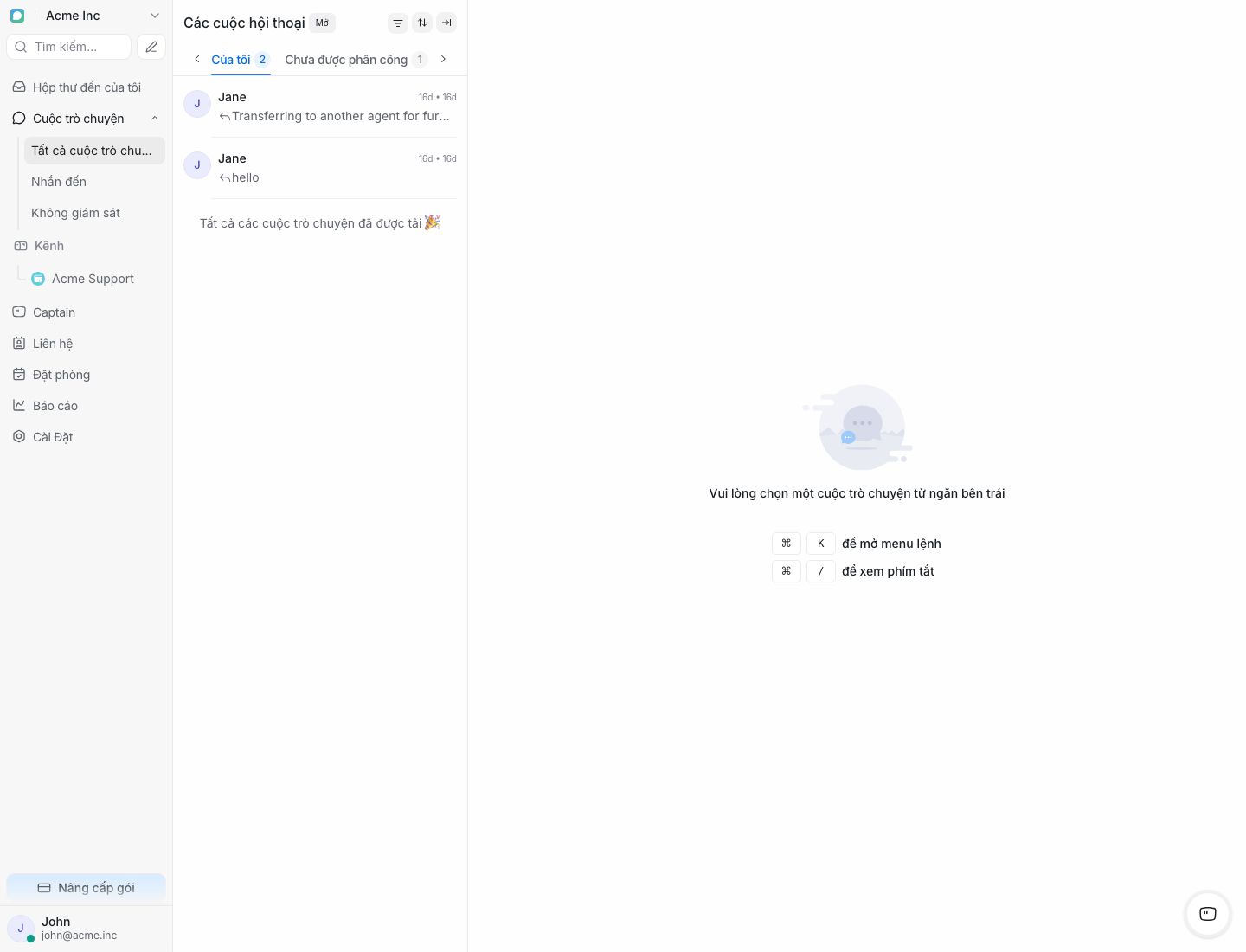
Recommended rollout
If this is your first AI deployment in the workspace, finish the assistant and its knowledge first, then roll it out on a lower-volume channel to inspect responses, handoff behavior, and knowledge gaps.
3. Create a new assistant
- 1
Open the AI Assistants area in navigation
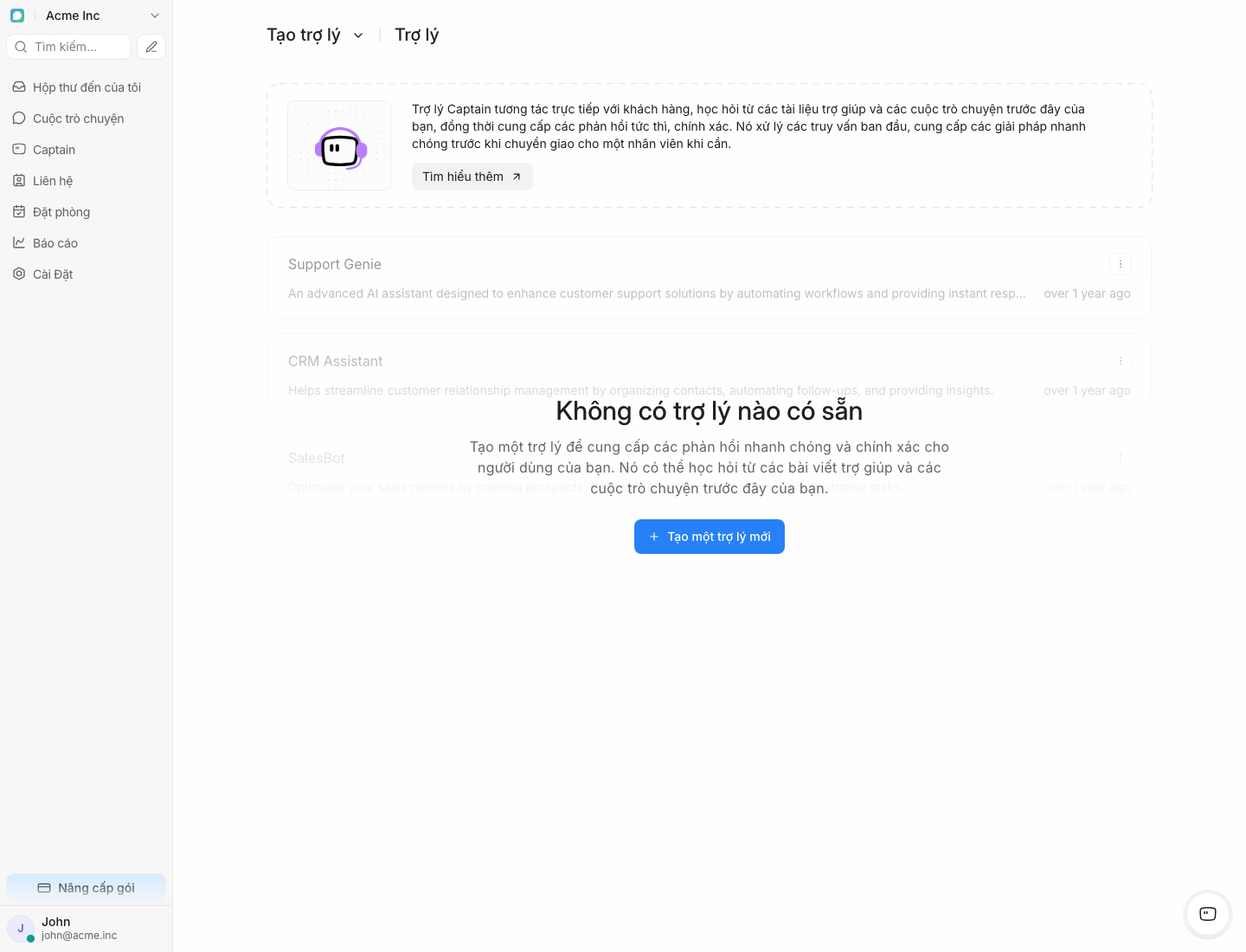
In the Swich app, go to the admin area and open AI Assistants. You will see the existing assistants in the workspace and their current status.
- 2
Click Create a new assistant
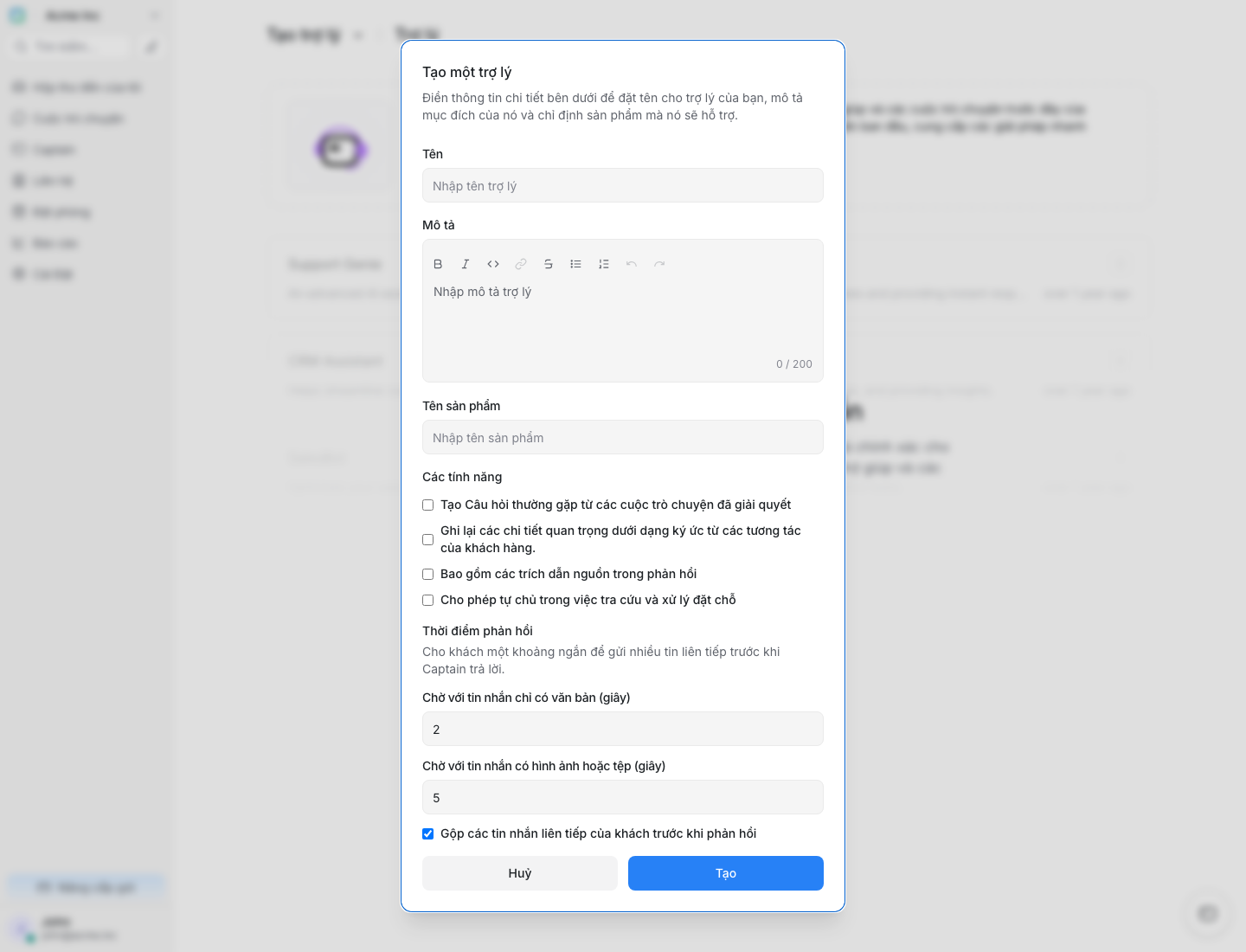
Swich opens the assistant creation form so you can define the internal name, operating role, and the product or brand this assistant supports.
- 3
Fill in the essential details
Keep the inputs short but precise. The name should make it obvious to your team which product or channel the assistant belongs to.
Assistant name
An internal name for the team, for example “Sales Assistant - Swich Core”.
Role description
A short summary of what the assistant should handle, where it should stop, and when it must hand off.
Product or brand name
This helps Swich align the right knowledge set, question context, and response framing for your product.
4. Configure assistant behavior
Once the assistant exists, tune behavior before moving it into channel rollout. This is where you define automation level, tone, and escalation rules.
- Set the opening greeting to match the channel and product context.
- Choose whether the assistant only drafts replies or can auto-reply above a confidence threshold.
- Define the cases that always require a human such as complaints, billing issues, or high-value customers.
- Keep the assistant scoped to approved knowledge so it does not guess beyond what your team has reviewed.
Practical tip
If you are not ready for fully automated replies, keep the assistant in draft-only mode for the first few days. This lets your team inspect what the AI would say and identify which documents still need improvement.
5. Prepare the assistant for channel rollout
- 1
Identify the target channel for this assistant
Decide which inbox or conversation type this assistant will serve so you do not create an overly generic assistant that is hard to evaluate.
- 2
Make sure the role matches the channel use case
For example, a sales assistant should support lead intake channels, while a post-purchase support assistant belongs in customer care flows.
- 3
Prepare handoff rules and fallback owners
Even before attaching the channel, define fallback agents, responsible team, and SLA expectations.
The detailed inbox attachment flow, Captain inbox creation, and live go-live setup are covered in the “Connect your first chat channel” guide. This section only makes the assistant ready for that step.
6. Add your initial knowledge base
A newly created assistant does not understand your business until it receives source material. Prepare a minimum knowledge set right away so when you move to channel rollout, Captain already has trustworthy context.
- Public FAQs such as shipping times, refund policy, or trial terms.
- Product material including features, limits, pricing, and plan comparisons.
- Internal operating guidance such as handoff rules, lead qualification criteria, and approved response patterns.
- Historical high-quality closed conversations so the assistant learns phrasing closer to your real team.
Knowledge hygiene
Prefer recent, verified, and clearly owned documentation. Do not upload outdated files that your team has not reviewed because Captain may reuse those outdated facts in live replies.
7. Test and improve after launch
- 1
Run 5 to 10 test conversations
Cover easy questions, ambiguous questions, missing-knowledge cases, and situations that should trigger handoff so you can observe the full behavior.
- 2
Review replies and handoff reasons
Check whether the assistant invents details, misses tone expectations, or hands off too late. Those patterns tell you what to fix in knowledge and operating rules.
- 3
Adjust confidence and add documents
If the assistant is too conservative, improve documentation or slightly lower the threshold. If it replies too confidently on vague questions, raise the threshold and broaden handoff rules.
Sign that the setup is ready to scale
When the assistant handles common questions well, escalates at the right time, and your team rarely needs heavy manual edits, you can replicate the same model for more inboxes or brands.