
1. The real Swich rollout flow
Captain only works end-to-end when four layers are ready: a connected chat channel, an AI assistant, a Captain inbox that maps the assistant to the channel, and a knowledge source such as a Guide or Document. Missing any one of these keeps AI from running properly.
- The chat channel brings real messages from Facebook, Instagram, Zalo, WhatsApp, or website chat into Swich.
- The AI assistant defines Captain role, tone, and handling scope.
- The Captain inbox is where the assistant is attached to the live channel.
- Guides and Documents are the knowledge sources Captain uses to answer customers.
Expected outcome
After this guide, you should have at least one live channel running with Captain and a clear validation path to confirm AI is using approved knowledge instead of guessing.
2. Connect the chat channel to Swich
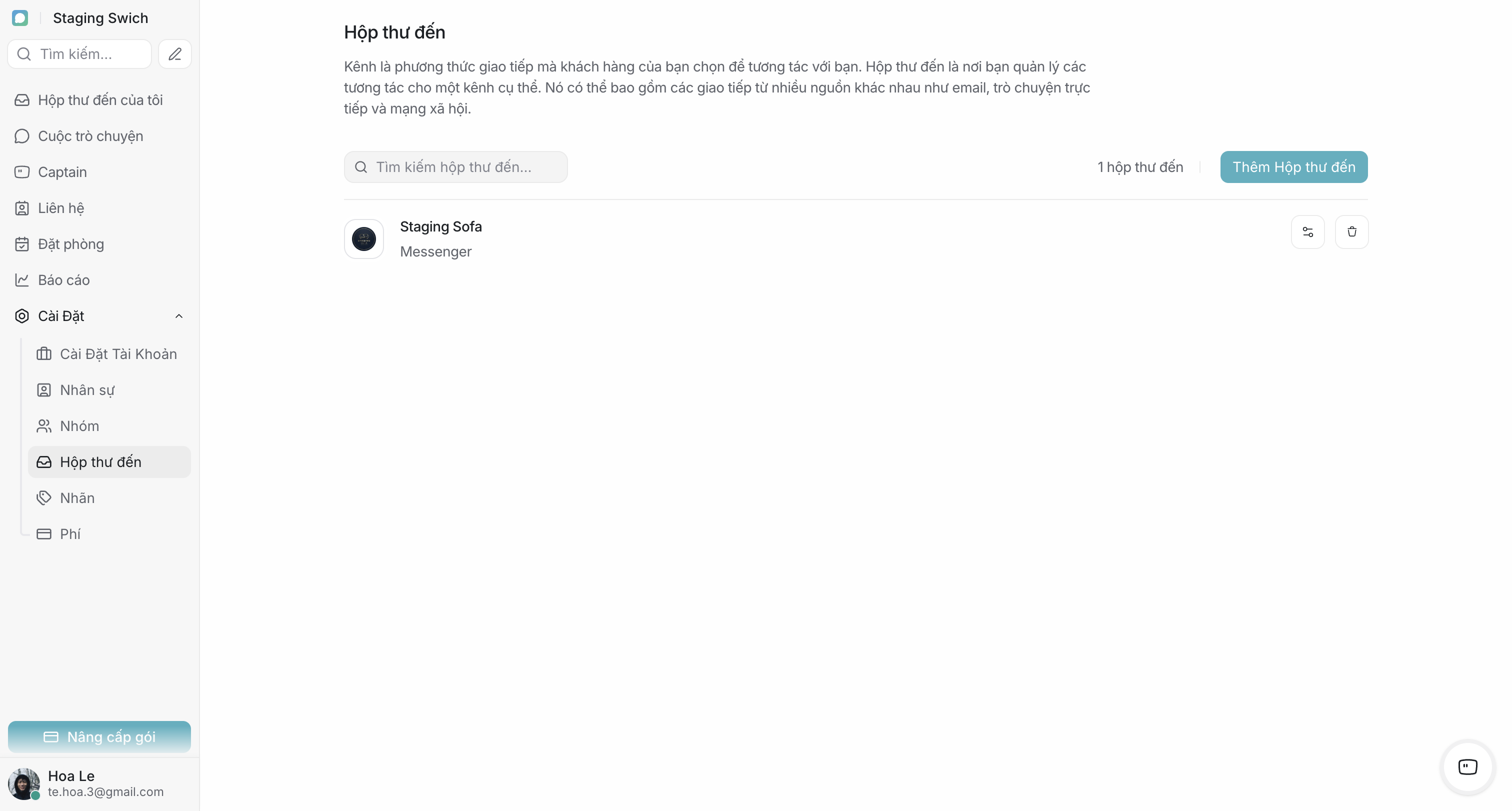
Start from channel connection. This is how real messages enter Swich from an external platform. Until the channel is connected, Captain has no live input to process.
- 1
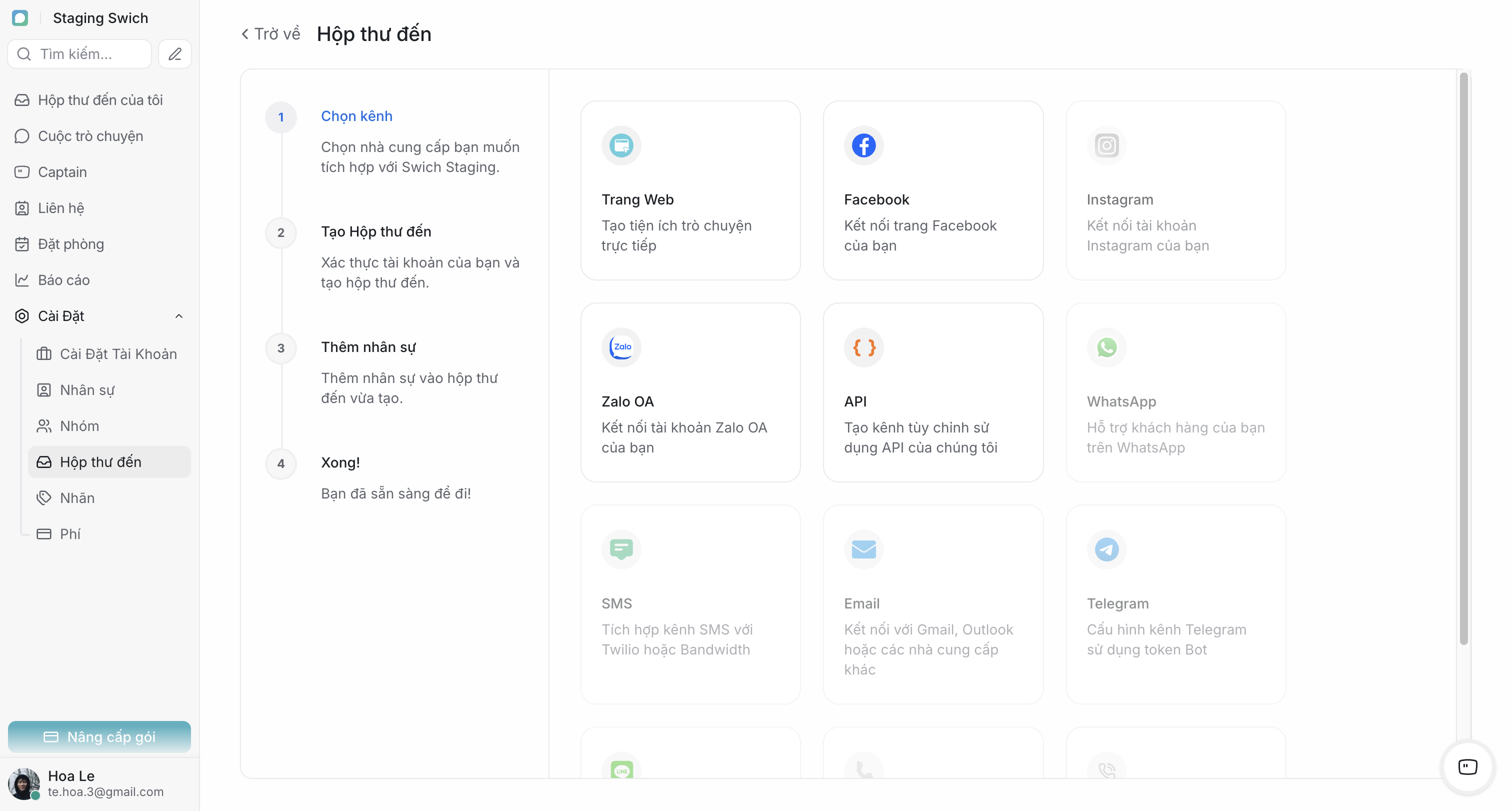
Open the channel connection area and choose the target platform
Pick the correct channel type, such as Facebook Page, Instagram, Zalo OA, WhatsApp, or website chat.
- 2
Authenticate and complete the platform linkage
Finish the permission or login steps required by that platform so Swich can receive and send messages.
- 3
Confirm the channel is receiving message events
Send one real test message from the live channel before attaching Captain.
Safe rollout rule
In week one, keep rollout limited to one primary channel so the team can monitor response quality and handoff speed before scaling.
3. Create an AI assistant for that channel
After the channel is connected, create the AI assistant that defines how Captain behaves there. If your workspace runs very different flows, create dedicated assistants instead of reusing one generic assistant everywhere.
- 1
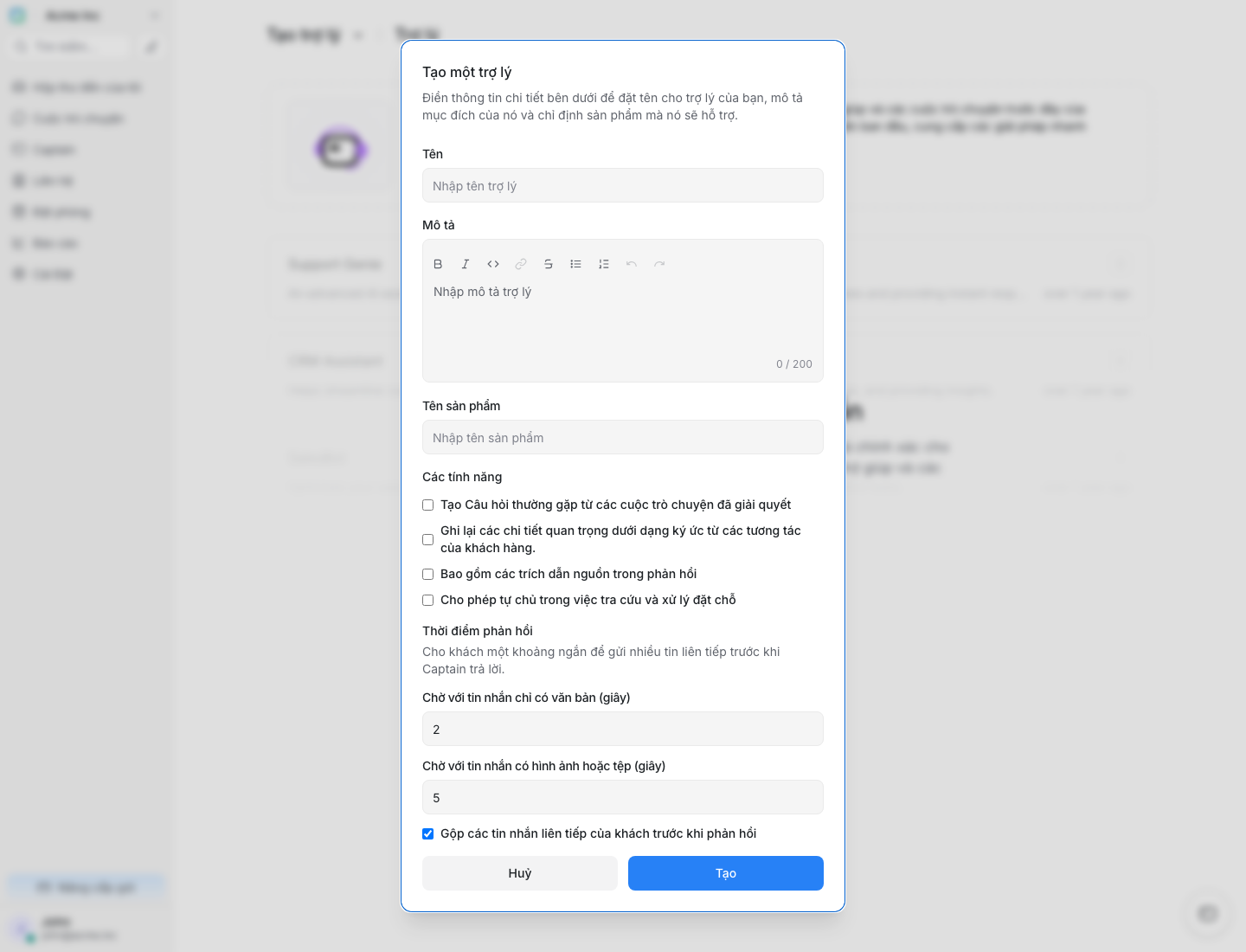
Open Captain and create a new AI assistant
Name it clearly so the team immediately knows which channel or use case it serves.
- 2
Define role, limits, and handoff rules
The assistant should know what questions it can handle, when it must hand off, and that it must not invent information outside approved knowledge.
- 3
Save the assistant before attaching it to an inbox
Once the assistant exists, you can use it in the Captain inbox setup step.
When to split assistants
If sales and support use different tone, knowledge, or escalation logic, split them into separate assistants from day one.
4. Create the Captain inbox and attach the assistant to the channel
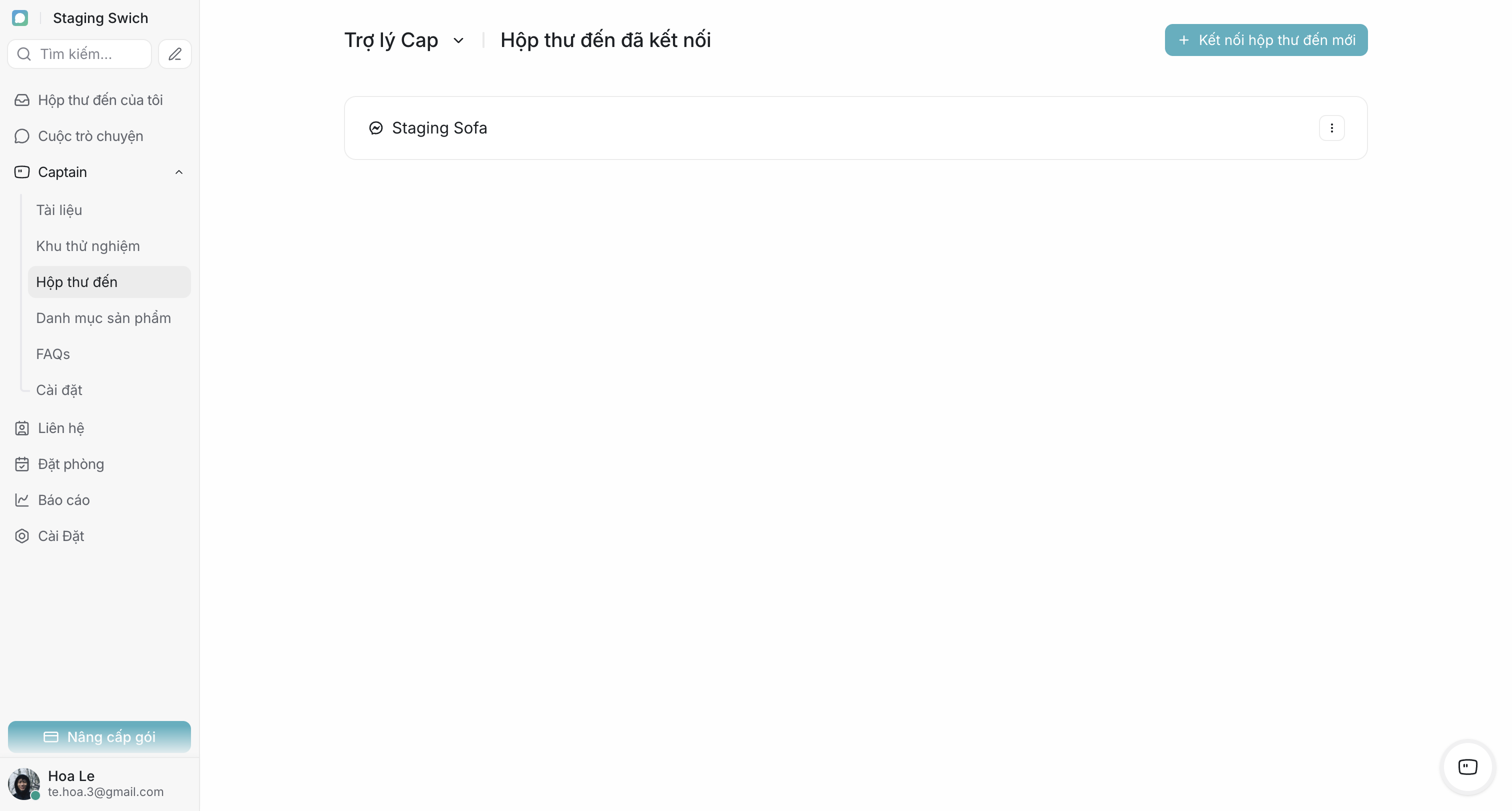
This is the most important bridge in the flow. The Captain inbox is where you pick the connected channel, attach the right assistant, and decide how Captain starts supporting that stream.
- 1
Open Captain > Inboxes and create a new inbox
Choose the channel you just connected so Captain has a dedicated operational entry point.
- 2
Select the right AI assistant for this inbox
Attach the assistant created in the previous step so Captain uses the correct role, context, and response style.
- 3
Confirm the initial operating mode
For an initial rollout, start in a safer mode such as draft-only or high-threshold auto-reply.
Why this step matters
Once the Captain inbox exists, every new conversation arriving on that channel has a path to be assisted by Captain.
5. Attach Guides and Documents so Captain has answerable knowledge
Captain only answers well with explicit knowledge sources. In this flow, Captain should use Guides or uploaded Documents to answer customers. If relevant data does not exist, Captain should hand off instead of guessing.
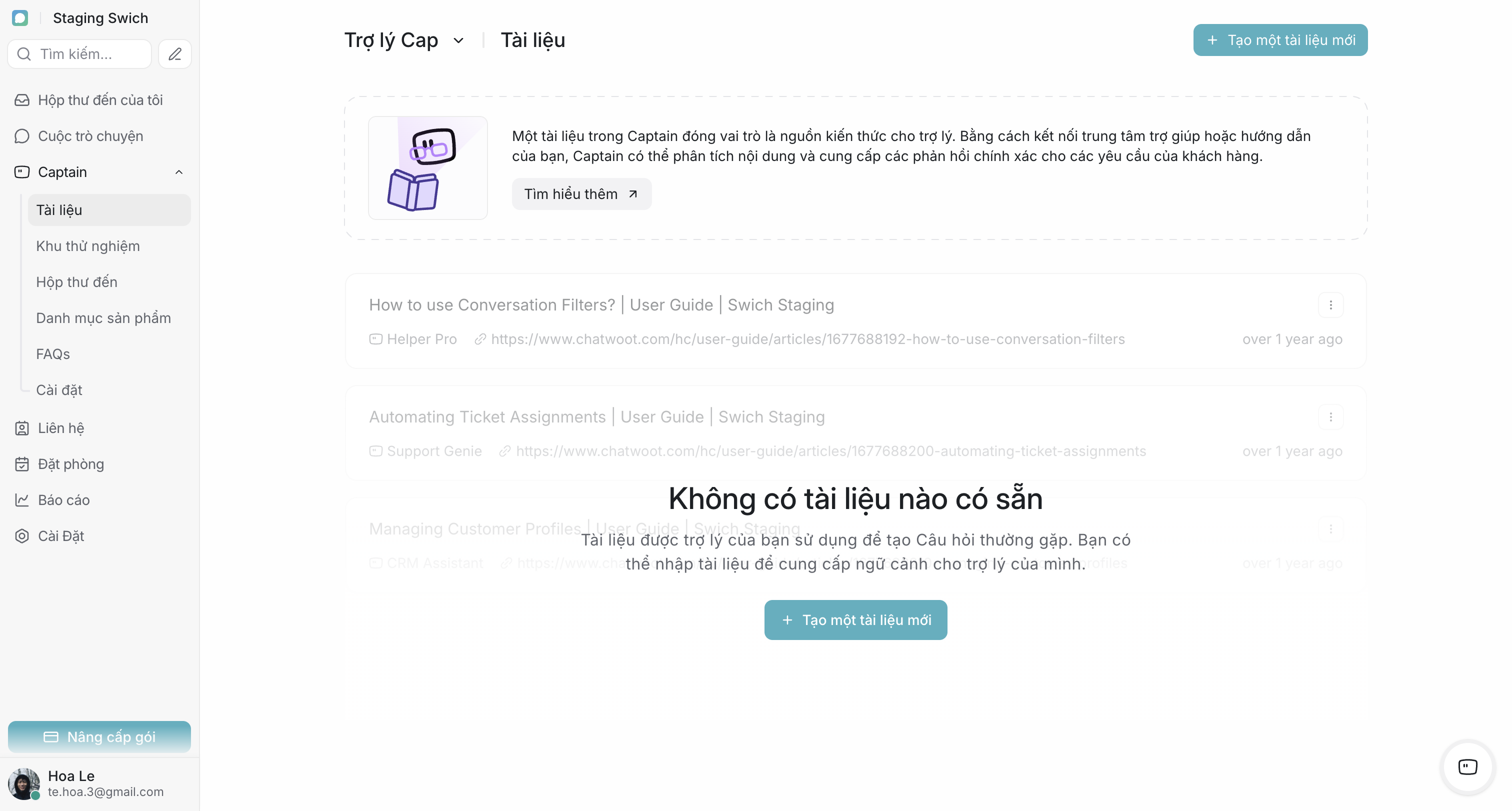
- Guides fit process knowledge such as consultation rules, lead qualification, and escalation rules.
- Documents fit searchable content such as FAQ, policies, product info, pricing, and feature limitations.
- Every source should be reviewed so Captain does not learn from outdated or conflicting material.
- If a question is outside Guides and Documents, Captain should escalate to a human instead of making assumptions.
Knowledge validation checklist
Test at least one FAQ found in a Document, one scenario described in a Guide, and one out-of-scope question so you can confirm Captain is using the right sources and knows when to hand off.
6. Go live and validate the first responses
- 1
Send test messages from the same live channel
Use realistic intents to verify Captain can receive the conversation and answer based on the loaded knowledge.
- 2
Review the response and handoff behavior
Check whether Captain follows the right tone, uses the approved knowledge, and escalates correctly when data is missing.
- 3
Adjust knowledge or rules on day one
If quality is off, improve the knowledge or prompt and rerun the same checks immediately.
7. Measure AI impact after the first channel goes live
- The percentage of conversations Captain can handle or support on first pass.
- First response time before and after enabling Captain.
- How many conversations still require heavy manual edits or late handoff because knowledge is missing.
- Agent workload reduction on repetitive questions by day or shift.
When to scale
Once Captain is stable, uses the right knowledge, and the team confirms real workload reduction, replicate this flow to the next channel.